PI-ERP · Role-based UX at scale / Product design case study
An ERP that tells each person what needs them.
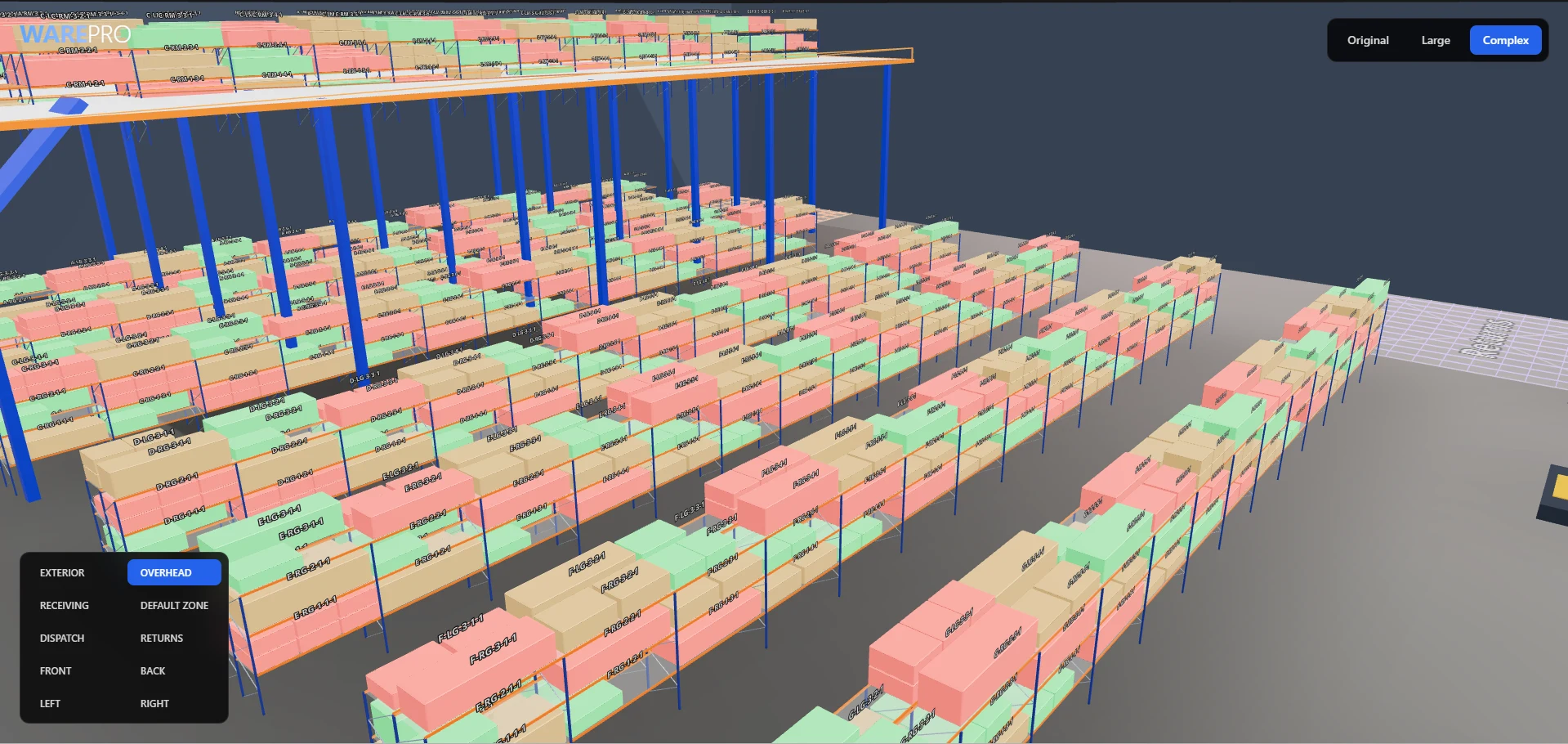
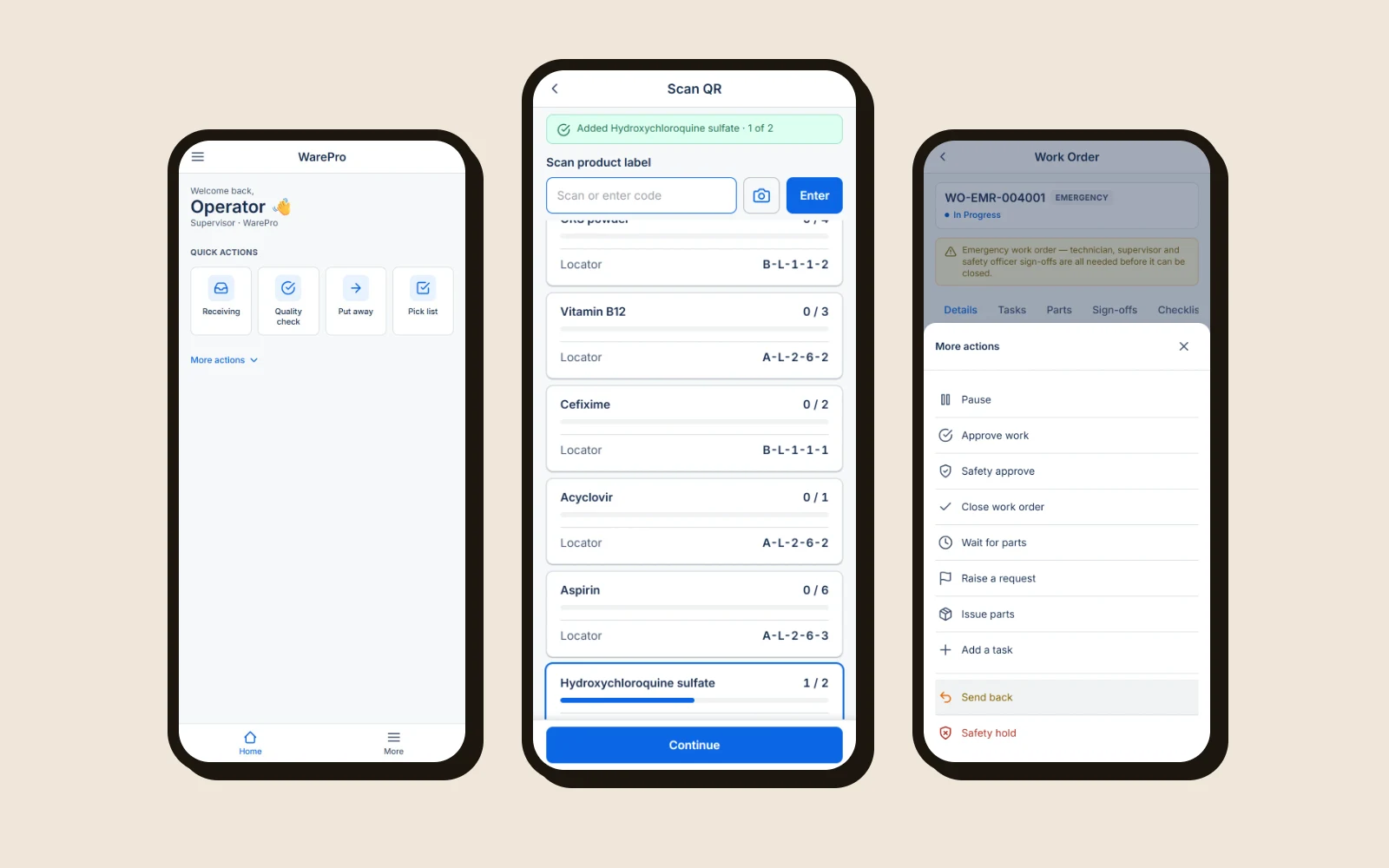
PI-ERP has 774 screens, seven maintenance roles, warehouse roles and several tenants. I designed and implemented the UX layer that lands each role on its own work, shows how urgent it is and what to do next, and holds every screen to one design system: on the web, in PiGo and in the Kuyil assistant.
- Role
- Product design · UX engineering (theme, configuration, renderer)
- Team & time
- Only designer, with engineering · about a month (Oct 2026)
- Scope
- 774 web screens · PiGo · Kuyil
- Status
- Live · web, PiGo and Kuyil
RelatedThe 2025 PI-ERP visual restyle PiGo mobile platform Kuyil AI assistant, the full redesign
- The problem
- Every role landed on the same crowded Home, urgency was invisible, and the web app failed keyboard and tablet use.
- What I did
- Designed and implemented the UX layer: role landing, one severity language, a 774-screen accessibility and responsive sweep, and one brand setting across products.
- The result
- Seven roles land on their own work, automated accessibility violations fell from 286 to 15, and tenant branding went from seven setup steps to upload and save.
01 / Starting point
The first screen showed everything except the person's work.
Each maintenance role landed on about 30 widgets from every module (warehouse, edge devices, marketplace, chat), most of them empty for that tenant. A planner's own work started about 1,250px down the page, and some roles couldn't log in at all. Now each role lands on its own work, set up through configuration alone, with no change to the ERP core.
02 / The principle
Every screen answers: what's affected, how bad, what next.
The tickets asked for severity, blocked stock and the next decision to be obvious. I turned that into one checklist every screen was held to: clear meaning, severity at a glance, a next action, urgent work first, calm empty states, one design system, and safe for every tenant's brand.
- The question I started with
- Is the information somewhere on the screen?
- The question it became
- Can this person tell what needs them, in a few seconds?
03 / The right work, at the right urgency
Show urgency, and only where a decision is made.
Verified role by role on a demo tenant, on the web and on PiGo.
01Land each role on its own work
- Evidence
- Seven maintenance roles existed but couldn't log in to a tenant, and every role saw the same Home.
- Decision
- Map each role to the widgets for its work, and hide other modules for those roles only. Warehouse roles follow WarePro's own app checkboxes, so no new roles were needed.
- Trade-off
- The left menu still lists every module; a role-specific menu is a follow-up.
- Implemented result
- Seven maintenance roles, the warehouse roles and Admin verified, with eight new warehouse widgets from receiving to dispatch. Configuration only, reusable per tenant.
02Urgency on the first screen
Supervisor: how long each job has waited, and which escalations are alerts. - Evidence
- Counts were bare, statuses were codes like IP and MW, dates were missing, and a five-row limit could cut an Emergency job off its card.
- Decision
- One severity language (Emergency solid red, Critical red, waiting or overdue amber), plus due and raised dates, status names, Emergency first, and empty widgets shrunk to one line.
- Trade-off
- At most one lozenge column per list, so some states stay plain text.
- Implemented result
- All seven roles reviewed on 14 screens, web and PiGo: 49 improvements, with no feature, label or button removed.
03Color only where a decision is made
Rejected: three colored columns (the red marks are review notes). Final: Severity is the only colored column. - Evidence
- The first version colored the Severity, Status and Hold Status cells of a list. Across many rows it read as noise.
- Decision
- Keep lists plain: only Severity is a lozenge. Color lives on the record header and the board cards, and each color has one meaning (Danger, Warning, Info, Success), written into the UI standard for other teams.
- Trade-off
- The list is quieter than the first version, so lower-severity states stand out less.
- Implemented result
- Lozenge and banner text at 5.2:1 to 7.1:1 contrast (the gate is 4.5:1), from design tokens only.
04 / Quality across every screen
Measured on all 774 screens, not a sample.
Every screen reachable from the menu was opened and checked for accessibility and at seven browser widths, and each of the 22 web roles was checked with its own login.
- Automated WCAG violations on eight key screens
- 286 → 15
- Tab stops with a visible focus ring
- 0 → 165 / 165
- Text below 4.5:1 contrast, across 643 screens
- 188 → 27
- Keyboard traps across 774 screens
- 0
- Screens clean at 1280+, 1024 and 768px, before the responsive fixes
- 97 · 42 · 0%
- Desktop pixel change from the responsive fixes
- 0.00–0.02%
Checked with axe-core and keyboard walks against WCAG 2.1 AA. The issues left are core iDempiere markup and other teams' plugins.
01Keyboard first, mouse unchanged
Before: Down does nothing. After: arrow keys move a visible focus. - Evidence
- The left menu tree couldn't take focus, so no window could be opened without a mouse, and none of 152 non-text tab stops showed a focus ring.
- Decision
- Turn the menu into a keyboard tree with one tab stop, and show the design system's focus ring on keyboard focus only.
- Trade-off
- Desktop toolbar icons under 24px were reported, not resized, because the desktop layout stays as it is.
- Implemented result
- Arrow keys and Enter open any window from the menu, Escape closes popups and returns focus, and toolbar buttons respond to Enter and Space.
02Fix tablet and phone without touching desktop
Before, at 390px. With the fix, at 390px. - Evidence
- 97% of screens were clean at 1280px and wider, 42% at 1024px, and none at 768px. Six shared layout problems caused most of it.
- Decision
- Fix the six shared problems once, following the design system's web-app behavior, and apply the fixes only below 1024px.
- Trade-off
- Problems that only appear on desktop are logged, not changed.
- Implemented result
- With the fixes, desktop and laptop screens stay pixel-identical (0.00–0.02% difference) while tablet and phone layouts reflow.
05 / One design system, every product
One brand, one color language, everywhere.
The web app, PiGo and Kuyil now read the same design tokens and the same tenant brand.
01Keep the priority color, and make it readable
Before: white on amber (3.2:1), status DR. After: dark on amber (9.2:1), status Drafted. - Evidence
- The restyle replaced the calendar popup's amber button with the standard blue. In review, the CEO asked to keep the priority color, and to show status names instead of codes like DR.
- Decision
- I recommended a standard button with the priority shown in a band and a lozenge. The CEO chose the priority-colored button, so I kept it and picked the text color per priority until every pair passed contrast.
- Trade-off
- A red button can read as “delete”, which the standard button avoided.
- Implemented result
- All eight priority colors pass 4.5:1: amber went from 3.2:1 to 9.2:1, and status reads “Drafted” instead of “DR”.
02One brand setting for every product
- Evidence
- Tenant colors disappeared after Change Role, PiGo kept a one-time copy of the primary color, Kuyil used a fixed blue, and a logo needed four hand-made configuration records.
- Decision
- One Appearance & Branding record drives the web app, the role screen, PiGo and Kuyil, and colors that would fail contrast are darkened automatically (text 4.5:1, borders 3:1).
- Trade-off
- Before sign-in the tenant is unknown, so the first login page keeps the PI-ERP brand.
- Implemented result
- Upload a logo and save, and it's live everywhere. 36 checks passed and none failed, across four tenants.
06 / Kuyil, the AI assistant
Answers you can check.
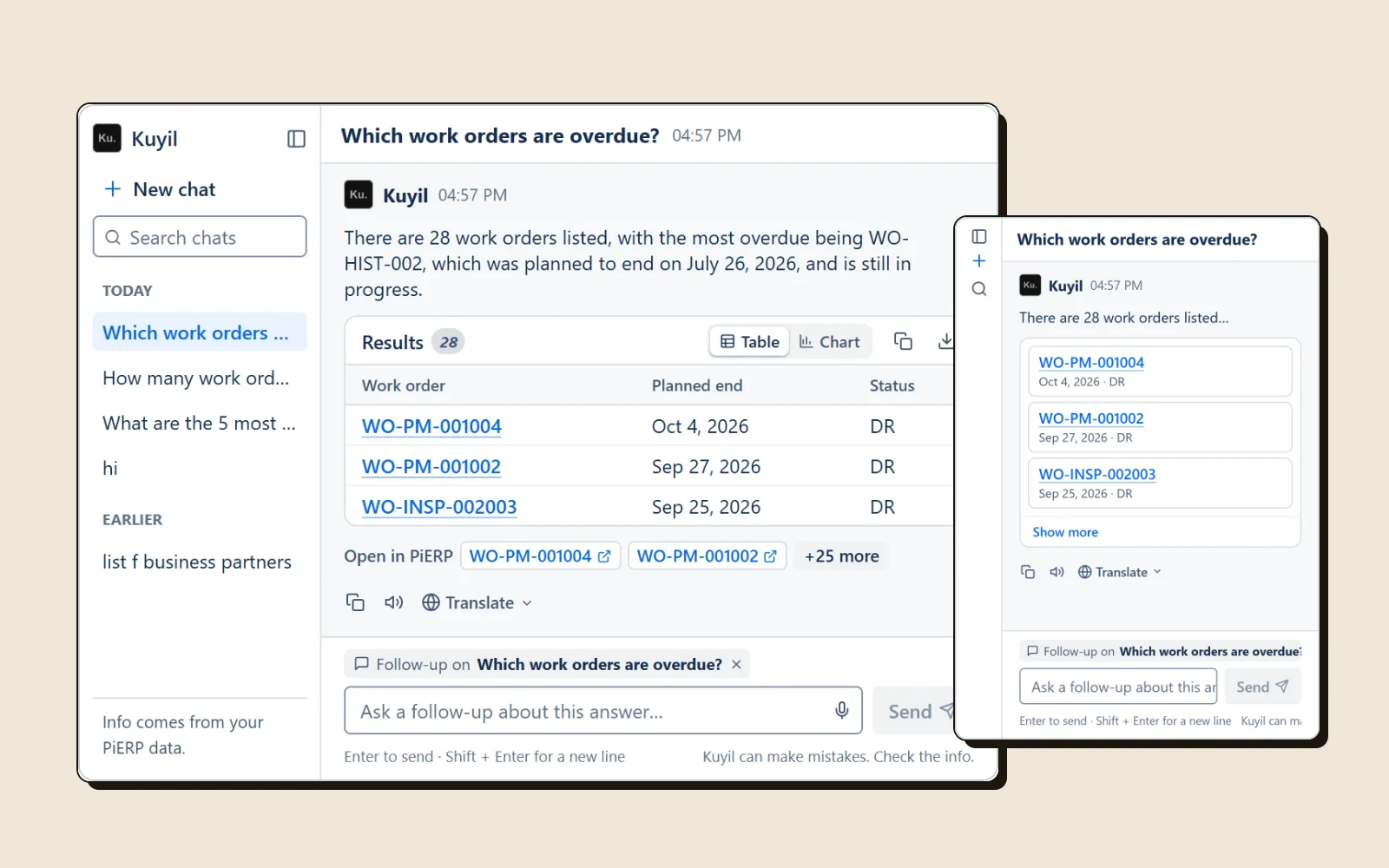
Kuyil answers questions about PI-ERP data. Its answers gave no source, and a failure only said “I'm sorry, I encountered an error”. The redesign moves Kuyil onto the same tokens and icons as PiGo and the web app. Every answer names its source and time, records open in PI-ERP, and data sits in a card with table and chart views, copy and CSV. A failed answer says what happened, with Try again and Edit question. The full redesign has its own case study.
07 / How I worked
A review page for every ticket.
I was the only designer, working with engineering over about a month of sprints. Each ticket ended in a review page with live before-and-after captures, the checklist, findings with an owner for each, and the decisions still needed. Problems outside my scope went to their owners instead of being patched around.
Every change was configuration or a shared component, never a one-off: migrations ran twice against a real database before deploy, and checks confirmed no hard-coded record IDs and no raw color values.
08 / Collaboration
I designed and implemented the UX layer. Module teams owned the logic underneath.
My contribution
- UX direction and the screen checklist
- Design tokens and the color rules
- Theme, screen configuration and renderer changes
- Accessibility and responsive audits of 774 screens
- PiGo and Kuyil front-end updates
- AI-assisted coding and automated checks
Product / leadership
- CEO and product review
- Ticket goals and acceptance criteria
- Rollout approval per tenant
Engineering & module owners
- iDempiere core
- Maintenance, warehouse and edge-device logic and data
- Kuyil's chat server
- Deployment and infrastructure
09 / Status
All five areas are live.
- Role landing & dashboards
- Live
- Tenant branding
- Live
- Board views & calendar
- Live
- Accessibility & responsive
- Live
- Kuyil redesign
- Live
Status as of late October 2026.
10 / Learning
A product with 774 screens doesn't improve one screen at a time. It improves when every screen keeps the same few promises: show me my work, tell me how bad it is, give me the next step, and work for every keyboard, screen size and brand.
What I'd do differently
Write the shared rules first. The severity colors and the screen checklist came after the first role dashboards were set up, so those dashboards had to be reviewed a second time.
Still open · not implemented
A view of which orders an asset breakdown delays; role-specific menus; the first login page in the tenant's brand; Kuyil feedback, regenerate and inline citations, which need server work.
More case studies